How to Bulk Create Google Workspace Users from Google Sheets
A new school intake often starts with a spreadsheet of names. With GW Manager, you can use Google Sheets to prepare those accounts, create them in bulk, and see the result beside each user. I’ll walk you through the fields to fill in, the options to choose, and how to check the accounts afterward.
On your computer, open a Google Sheet, go to Extensions > GW Manager > Launch, and choose Manage Users > Create Users in the sidebar. GW Manager checks whether the workbook already has the Create Users sheet. If it is missing, you can insert it from the sidebar. If it already exists, GW Manager uses it without creating another copy. Add your users, run the job, and check the result written beside every row.
Before you start: Use a Google Workspace administrator account with permission to create users. Make sure GW Manager is installed for that account, your intended Google Workspace licenses are available, and every organizational unit in the sheet already exists.
How to bulk create Google Workspace users with GW Manager
1. Launch GW Manager from Google Sheets
Open the Google Sheet you want to use for the job. Click Extensions, point to GW Manager, and click Launch.
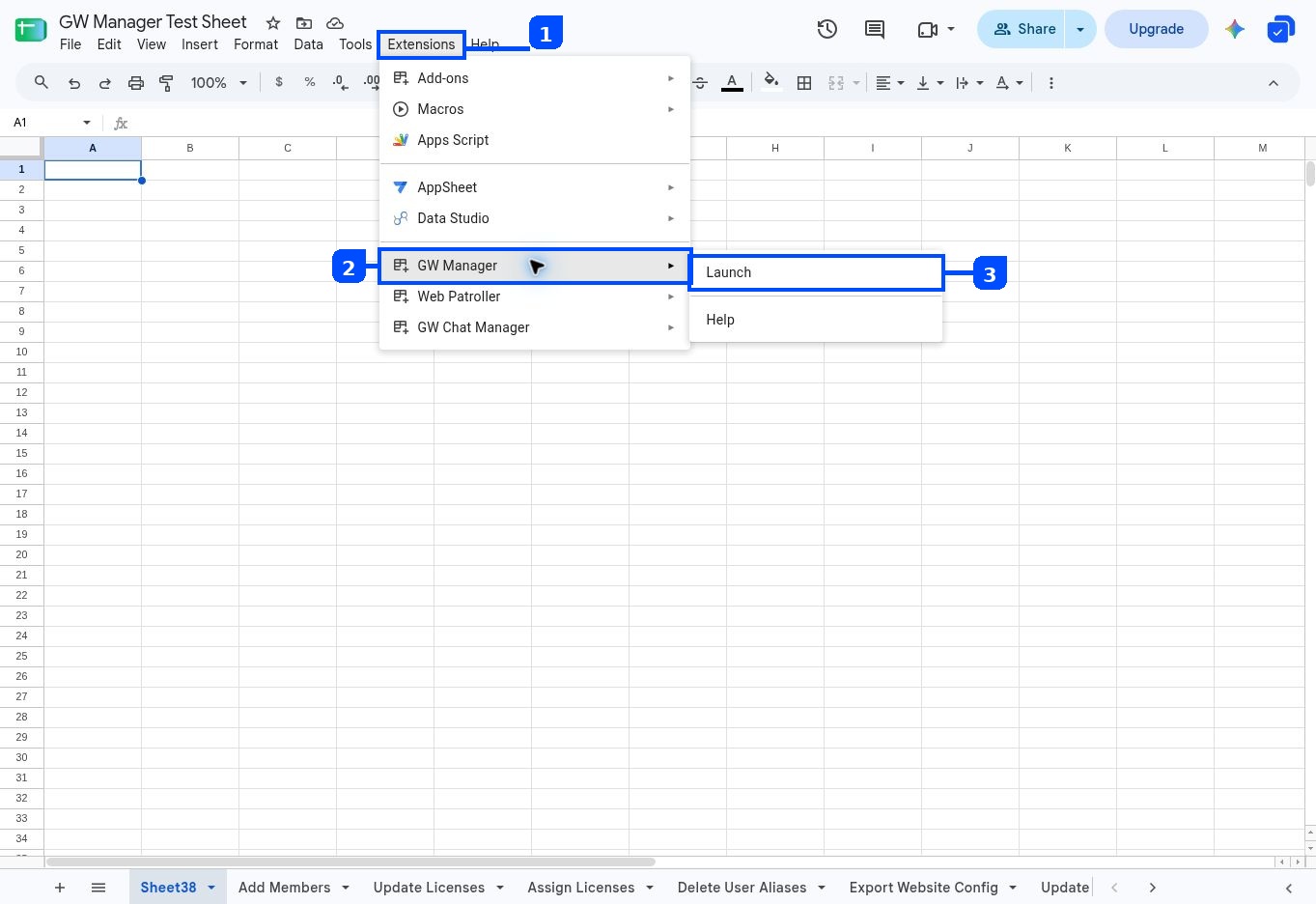
GW Manager opens in a sidebar beside the sheet. This is where you choose the task and run it; the sheet remains the place where you prepare the user data.
2. Open the Create Users feature
In the GW Manager sidebar, open Manage Users and select Create Users.
At this point, GW Manager checks the workbook for you:
- If the Create Users sheet already exists: GW Manager recognizes it and displays Run Create Users. You do not need to insert the sheet again.
- If the Create Users sheet is missing: GW Manager displays Insert Sheet. Select it and click Execute. The add-on creates the correct template and opens the new tab.
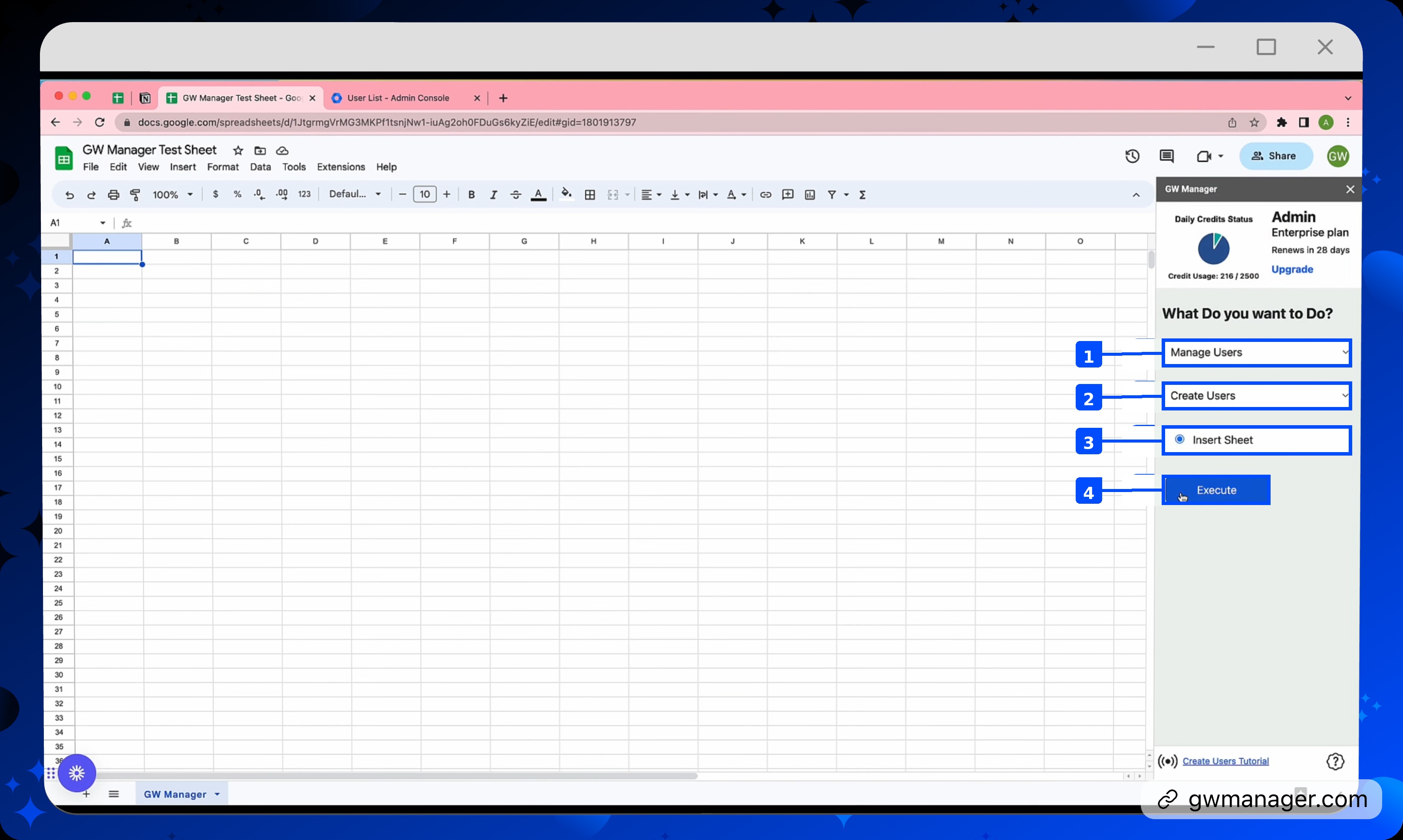
In the screenshot, choose Manage Users at 1 and Create Users at 2. This workbook does not have the template yet, so GW Manager shows Insert Sheet at 3. Clicking Execute at 4 adds it.
If you are setting up a new admin workbook and want every GW Manager template at once, use Manage Utilities > Insert All Sheets instead.
3. Prepare the users you want to create
Add one user per row. This example shows ten student accounts; use the same columns for your own batch.
Fill in the required columns marked with an asterisk. Use the optional columns when you need to add recovery or staff details.
Choosing the organizational unit: An organizational unit (OU) groups accounts so you can apply the right settings to them. Enter / for the root or an existing OU’s full path. The example uses /GW Manager Tutorials; create that OU first if you want to use the same path.
Choosing temporary passwords: Give each user a unique password that follows your organization’s requirements. You can review those settings in Google’s official password-requirements guide.
Treat the password column as sensitive. Share the sheet only with people who need to run the job, and remove temporary passwords after onboarding if your process permits it.
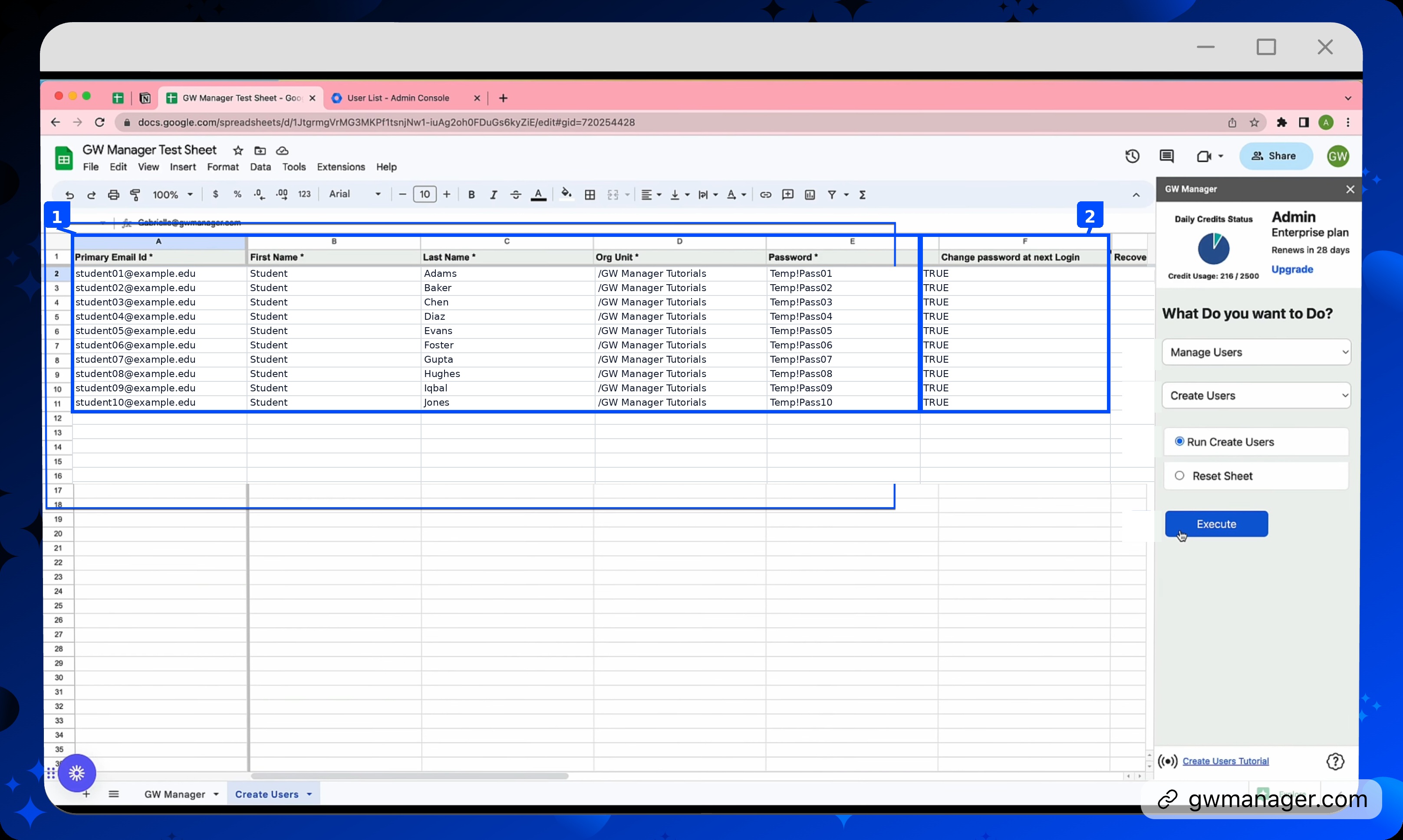
In the screenshot, box 1 covers the required account fields. Box 2 shows Change password at next login. Set TRUE to ask the user to choose a new password at their next Google sign-in, or FALSE to leave that requirement off. For a temporary-password handoff, I recommend setting TRUE explicitly.
The names, email addresses, and passwords shown are examples. Replace them with your own user details and a unique temporary password for each account.
4. Run the Create Users job
Return to Manage Users > Create Users in the sidebar. Because the Create Users sheet now exists, GW Manager displays Run Create Users instead of Insert Sheet.
Choose Manage Users at 1, Create Users at 2, and Run Create Users at 3. Review the ten rows, then click Execute at 4.
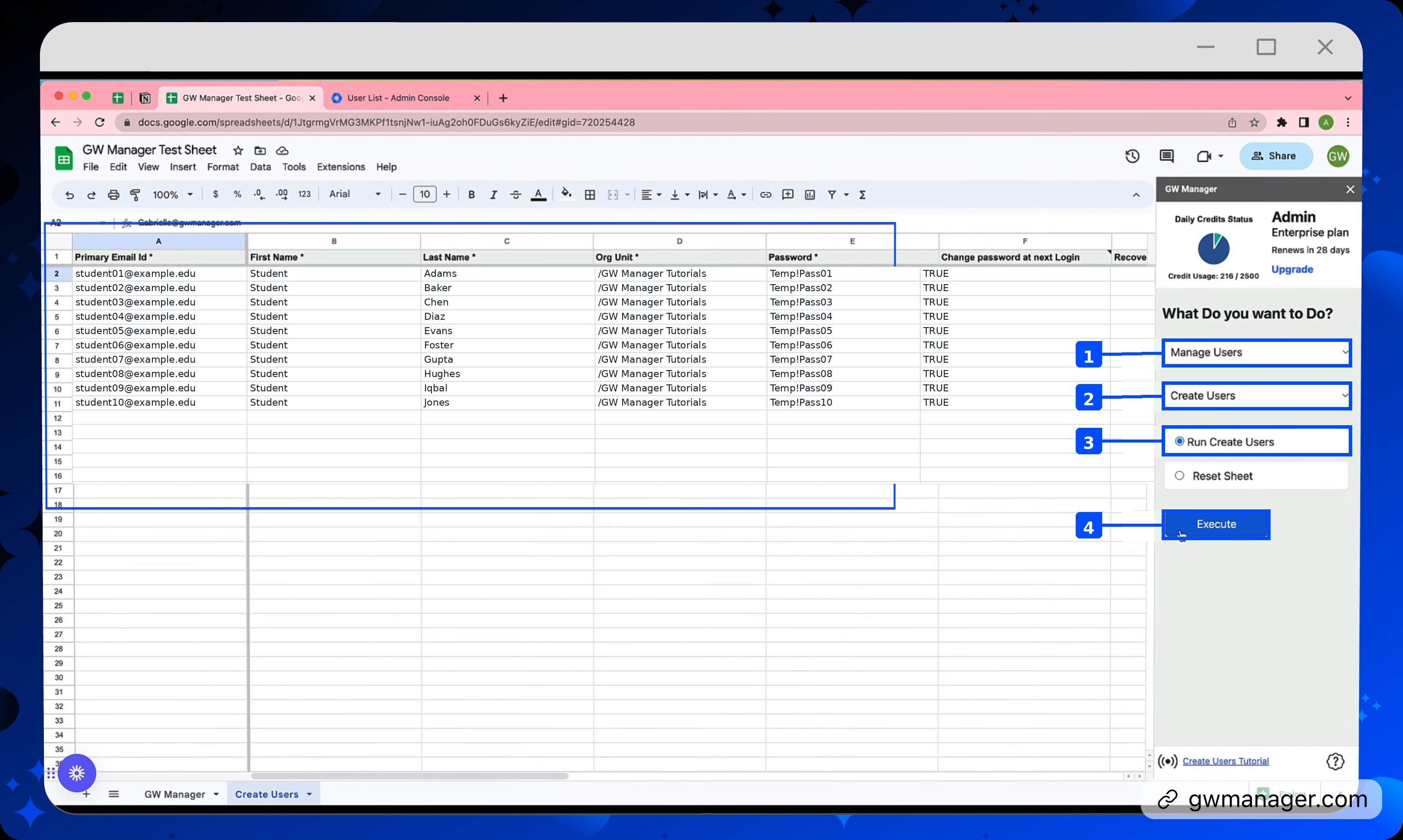
Before clicking Execute, check the email addresses and OU paths. If automatic licensing is enabled for the destination OU, Google can assign licenses to the new accounts.
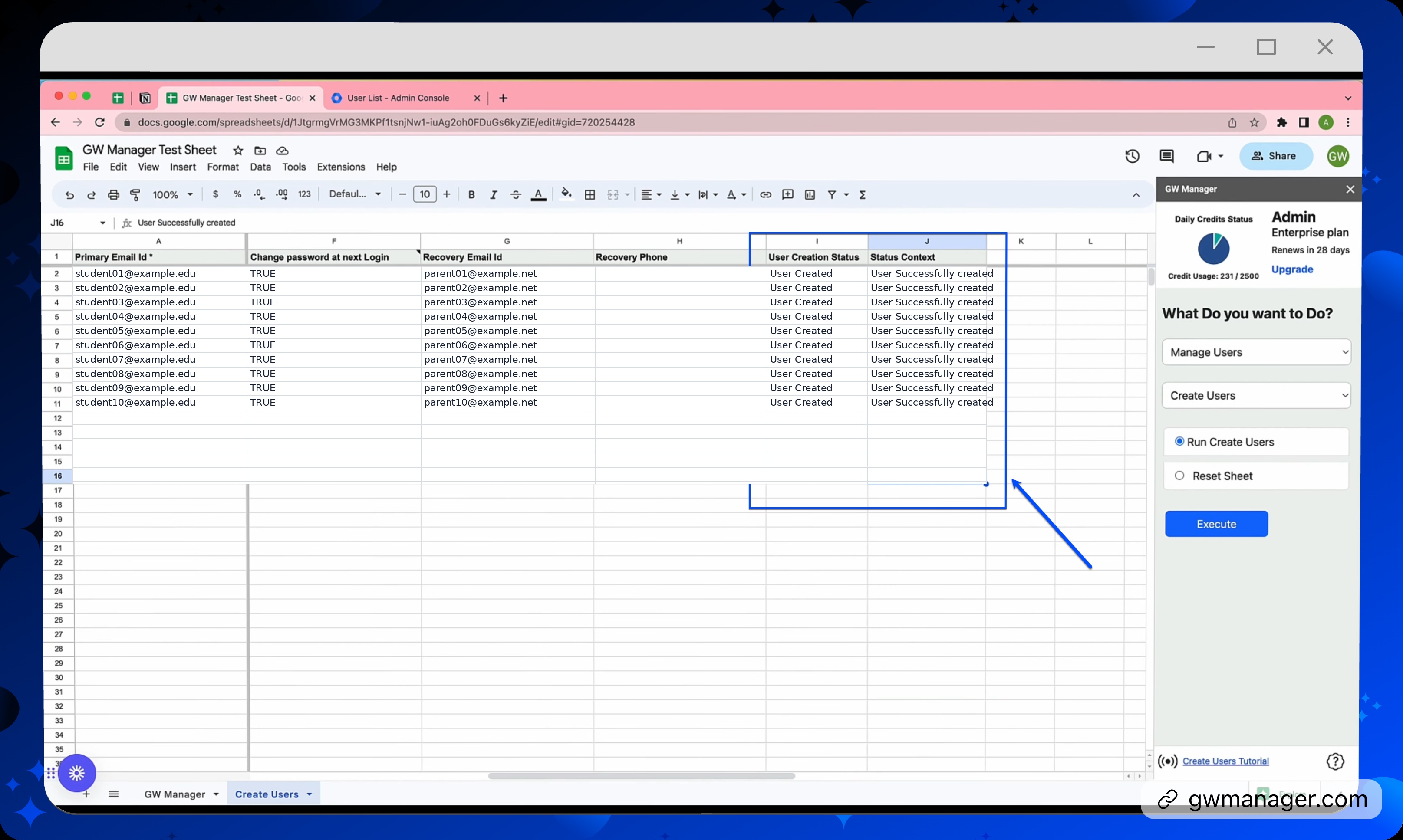
GW Manager shows the task status while it processes the batch and writes a result back to every row in the Sheet. When the task finishes, check the result beside each user to confirm which accounts were created.
5. Verify the new users in the Admin console
Open the Google Admin console and go to Directory > Users. Search for one of the new primary email addresses or filter by the organizational unit you used.
Check three things:
- The user exists.
- The user is in the correct organizational unit.
- The expected license has been assigned.
Why I use GW Manager instead of Google’s native CSV upload
Google’s Admin console has a native CSV process, but the workflow is more fragmented. You download a template, edit it, save it as a CSV, upload it, monitor the Tasks list, and download a separate log when rows fail.
GW Manager keeps the working data and the result in Google Sheets. That matters when onboarding is a repeated admin job rather than a one-time file upload.
What I like about this workflow is that the user list and the results stay together. You can review the batch in the same sheet you used to prepare it.
Common problems and how I check them
The GW Manager sidebar opens blank
The most common cause I see is having several Google accounts signed in within the same browser profile. The Sheet may be open with one account while GW Manager access belongs to another.
Sign out of every Google account in that browser. Then sign in only with the Google Workspace administrator account that has access to GW Manager. Open a Sheet owned by that account and launch Extensions > GW Manager > Launch again. If the sidebar is still blank, reload the Sheet, confirm that the add-on has the permissions it requests, and try a new Sheet owned by the same administrator account.
The organizational unit is invalid
Copy the complete organizational-unit path from the Google Admin console and start it with /. The name, capitalization, spaces, and parent path must match exactly. In this tutorial, the full path is /GW Manager Tutorials.
A user already exists
Search the Admin console for that email address and check whether it is already assigned to a user or an alias. If the account already exists, use GW Manager’s bulk user update feature for the changes you need.
Some users were created and others failed
Read each row’s result to find any value that needs correcting, such as an email address or OU path. Check which accounts already exist before submitting another creation batch.
The user exists but has the wrong license
Check the destination OU’s automatic licensing settings and the licenses assigned to the account. Google’s license-assignment guide explains how automatic assignment works and where to review those settings.
Frequently asked questions
Does creating a user assign a Google Workspace license?
License assignment depends on your subscription and automatic licensing settings. Check the destination OU’s settings before the batch, then verify the license on each new account. Your GW Manager subscription and your Google Workspace licenses are separate. To assign licenses to the accounts you’ve created, follow the GW Manager bulk license-assignment tutorial.
How should I give users their sign-in details?
After you confirm the accounts are created, share each user’s email address and temporary password through your school’s approved onboarding process. Keep the admin spreadsheet restricted to the people managing the accounts.
Ready to create your batch?
Open your user list in Google Sheets and launch GW Manager. Start with the required columns, check the OU paths, and use the row results to confirm your batch is ready for onboarding.
Related Posts
Use GW Manager like a pro with these step by step tutorials, and save bunch of time doing bulk tasks in Google Workspace!